3.8 Local Free AI: KoboldCpp
KoboldCpp is a local inference tool that can load GGUF models and provide an OpenAI-compatible API. After setup, MiniTavern can access models running on your computer through LAN, without any cloud API key.
Version note
- MiniTavern for iOS: works directly with this setup.
- MiniTavern for Android: use v1.5.0+. On older versions, Android 9.0+ may block cleartext HTTP for apps, causing browser access to work while app access fails.
MiniTavern also provides a one-time purchase version with no subscription and no ads: MiniTavern Ultra. If you use KoboldCpp frequently, Ultra can be a good mobile option.
Core configuration
To connect MiniTavern to KoboldCpp, prepare:
- Host IP: usually starts with
192.168or10.(for example192.168.1.75) - Port: default
5001(or your actual startup port) - Base URL format:
http://192.168.1.75:5001/v1
Important
- Use
http(nothttps) - URL must include the port (usually
5001) - URL must end with
/v1(OpenAI-compatible path)
Example: http://192.168.1.75:5001/v1
Requirements
- A computer running KoboldCpp (Windows/macOS/Linux)
- Phone and computer on the same Wi-Fi
- A chat model (
.gguf) loaded in KoboldCpp - Host set to
0.0.0.0at startup (LAN access enabled)
Steps
Preparation: understand three addresses
Most connection failures come from mixing these up:
| Name | Example | Purpose | Accessible from phone |
|---|---|---|---|
| Bind address | 0.0.0.0 | Listen on all interfaces | ❌ No direct access |
| Localhost | 127.0.0.1 | Loopback on this computer only | ❌ Not from other devices |
| LAN address | 192.168.1.75 | Reach host from LAN devices | ✅ Yes |
Step 1: start KoboldCpp with LAN listening
- In KoboldCpp GUI, set Host to
0.0.0.0. - Use Port
5001(or your custom port). - Load a chat model and start the service.
Logs often show
127.0.0.1. That output alone does not indicate LAN status. Use Step 3 verification as ground truth.
Step 2: find your computer LAN IP
On the computer running KoboldCpp, check IPv4:
- macOS: System Settings → Network → Wi-Fi → Details → TCP/IP → IPv4
- Windows: run
ipconfigand check WLAN IPv4
Record an address like 192.168.1.75.
Step 3: perform two connectivity checks
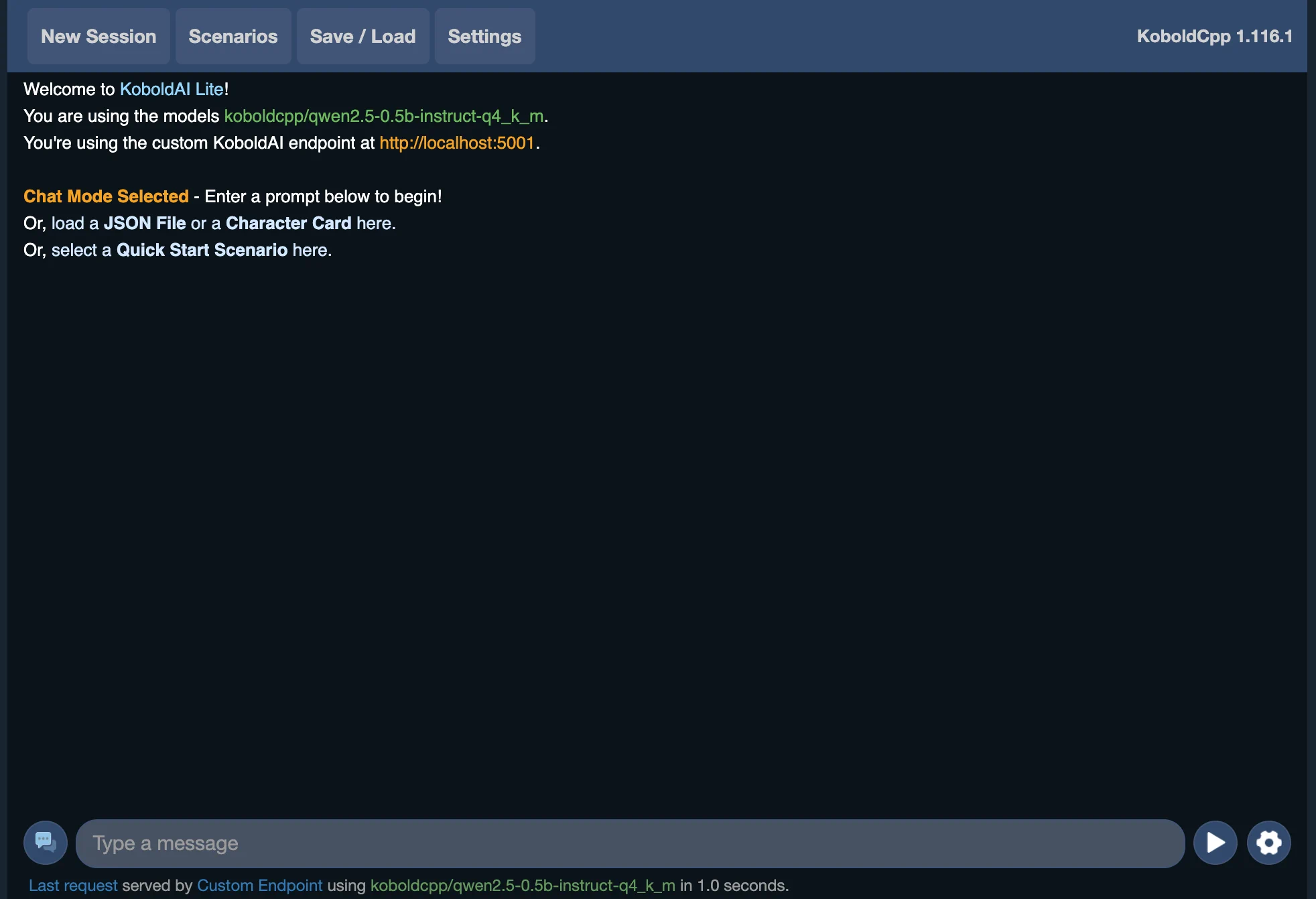
From a phone browser on the same Wi-Fi, open:
http://192.168.1.75:5001Check 1 (Web UI) expected: KoboldCpp page opens.
Then open:
http://192.168.1.75:5001/v1/modelsCheck 2 (model list) expected: model list JSON returns.
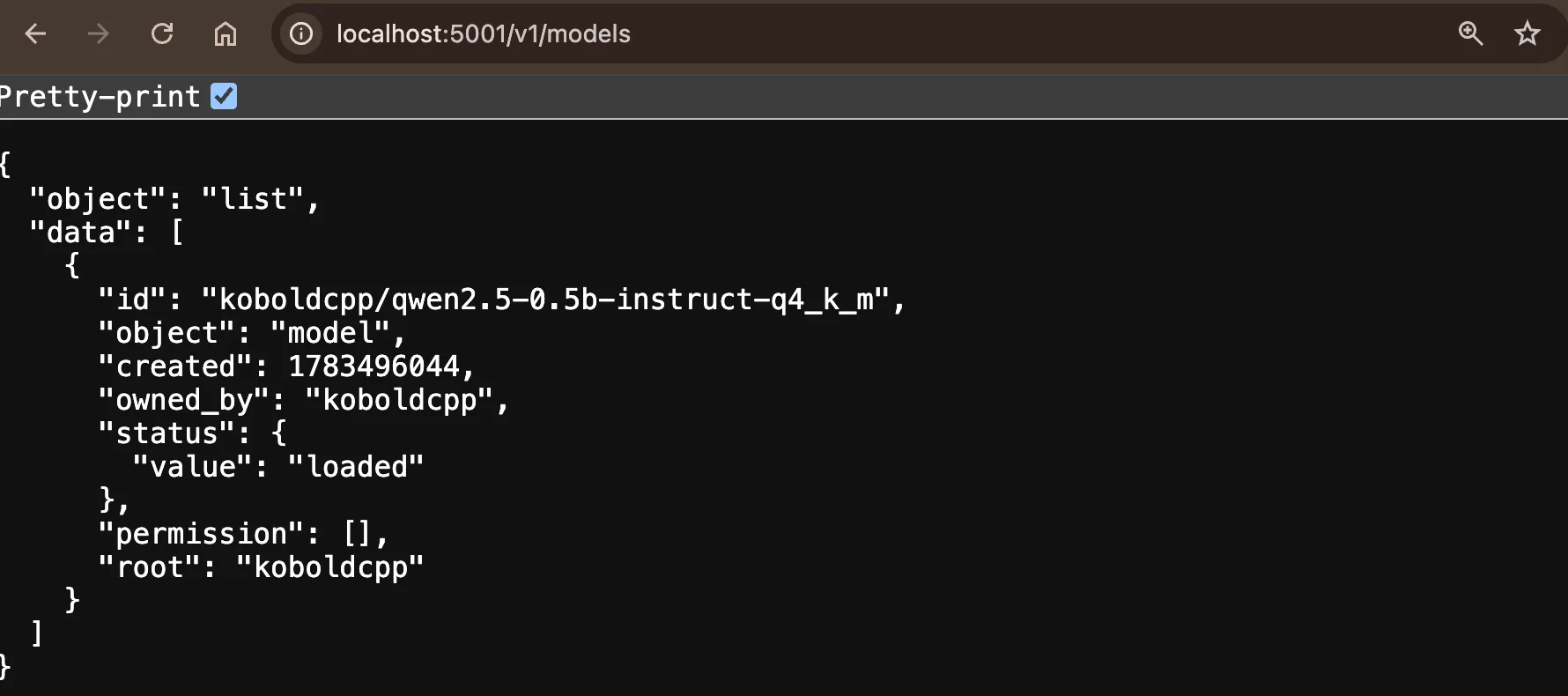
If checks fail, verify:
- Host is
0.0.0.0 - Phone and PC are on the same Wi-Fi (not guest network)
- URL includes
:5001 - Router AP isolation is disabled
Step 4: configure MiniTavern
- Open MiniTavern → Settings → LLM Settings → Configure LLM.
- Choose provider:
v1.4.x: Other LLMv1.5.x+: Custom (OpenAI protocol)
- Set Base URL:
http://192.168.1.75:5001/v1- API Key can be empty.
- Fetch model list, select model, test connection, then save.
FAQ
Q: Web UI opens in browser, but MiniTavern cannot fetch models?
A:
- On Android, confirm version is
v1.5.0+; - Verify Base URL includes both
:5001and/v1; - If needed, set API Key to a placeholder like
local.
Q: Why can't I access http://0.0.0.0:5001?
A: 0.0.0.0 is a bind address, not a routable access address. Use http://<your-lan-ip>:5001.
Q: Logs show 127.0.0.1. Is LAN access not enabled?
A: Not necessarily. LAN is confirmed only when Step 3 works: phone can open Web UI and /v1/models.