3.7 Local Free AI: LM Studio
LM Studio is a desktop tool to search, download, and run GGUF models with a GUI, then serve an OpenAI-compatible API via Local Server. With MiniTavern on your phone, you can chat using models running on your PC—no cloud API Key required.
Core configuration
When configuring LM Studio, prepare the following:
- Host IP: usually starts with
192.168(e.g.192.168.1.75) - Base URL format:
http://192.168.1.75:1234/v1
Important
- Use
http(not https) - Use port
1234(LM Studio Local Server default; follow what the app shows) - URL must be OpenAI-compatible, with
/v1at the end
Example: http://192.168.1.75:1234/v1 (where 192.168.1.75 is the LAN IP shown in LM Studio)
Why LM Studio?
- GUI: search, download, and load models with little command-line work
- Free locally: local inference does not require a cloud API Key
- Privacy: conversations go over your LAN to your PC for processing
- OpenAI-compatible: works with MiniTavern Other LLM
- Wide model choice: rich GGUF catalog with many quantization options
Requirements
- A computer (macOS example; Windows/Linux work too)
- Phone and PC on the same Wi-Fi
- PC stays on with LM Studio Local Server running
- Enough RAM/VRAM (7B+ recommended for roleplay)
Steps (macOS example)
Preparation: install LM Studio and download a model
- Download and install LM Studio from https://lmstudio.ai/, then open the app.
- Open Discover (or the model library), search for and download a moderately sized instruct model for testing—for example a Qwen2.5-7B-Instruct GGUF build (exact name varies in the catalog). Wait for the download to finish.
The first model download uses significant disk space—plan ahead.
Step 1: start Local Server and allow LAN access
Complete these two checkpoints before continuing:
- Checkpoint 1: turn on the LM Studio local server switch. When running, the UI should show Status: Running.
- Checkpoint 2: in Server Settings, enable Serve on Local Network so phones and other devices on the same Wi-Fi can reach LM Studio on your PC.
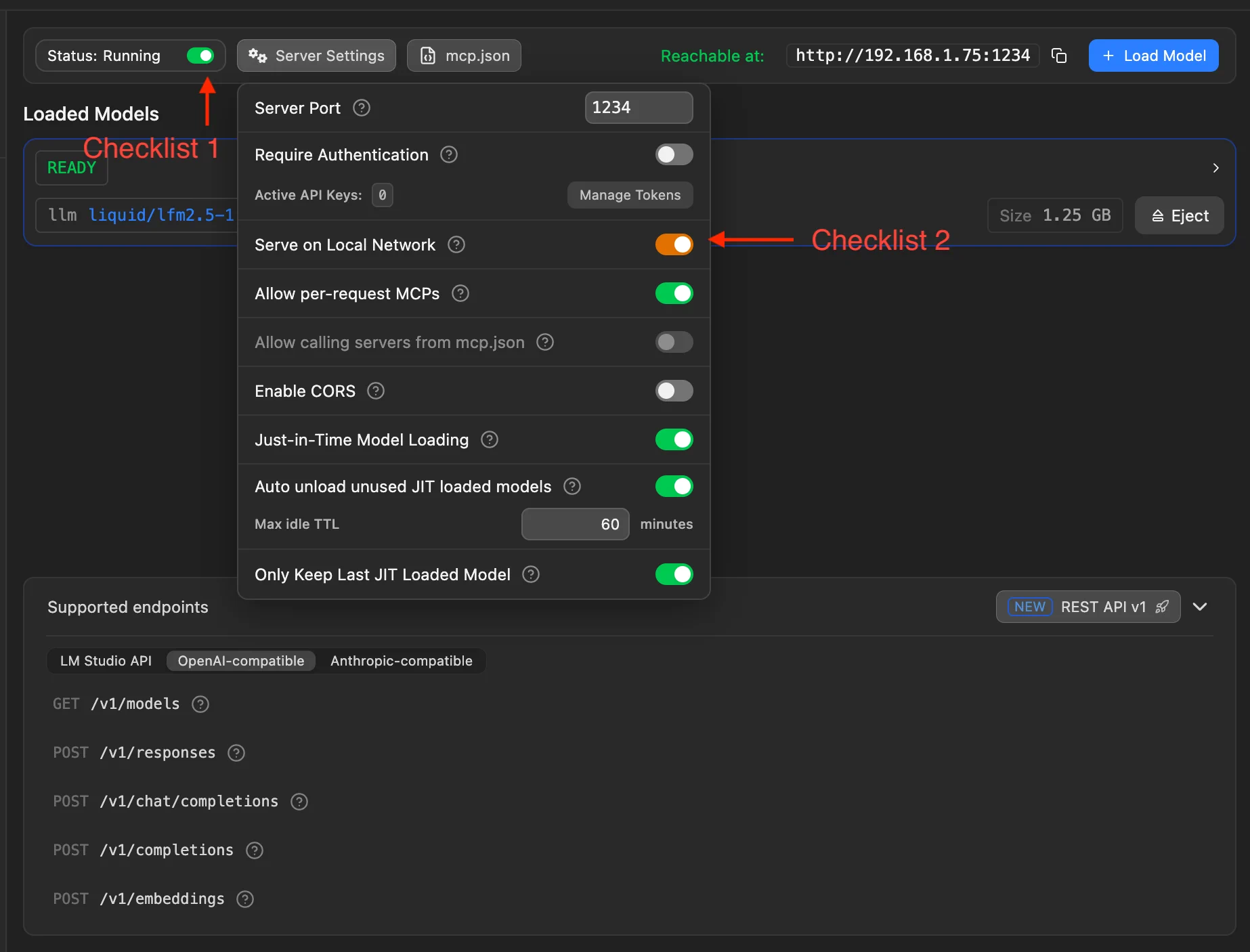
Why enable LAN access?
- MiniTavern runs on your phone and must reach LM Studio on your PC over the LAN
- By default, only
127.0.0.1may be allowed - After enabling, phones on the same Wi-Fi can use
http://PC_IP:1234/v1
Step 2: confirm the LAN address and load a model
Complete these two checkpoints:
- Checkpoint 3: check the LAN address LM Studio displays—for example
http://192.168.1.75:1234in the screenshot. This is the prefix for the MiniTavern Base URL (you still append/v1at the end). - Checkpoint 4: use the Load Model button (top right) to select and load a downloaded local model. After loading, running model info appears below.
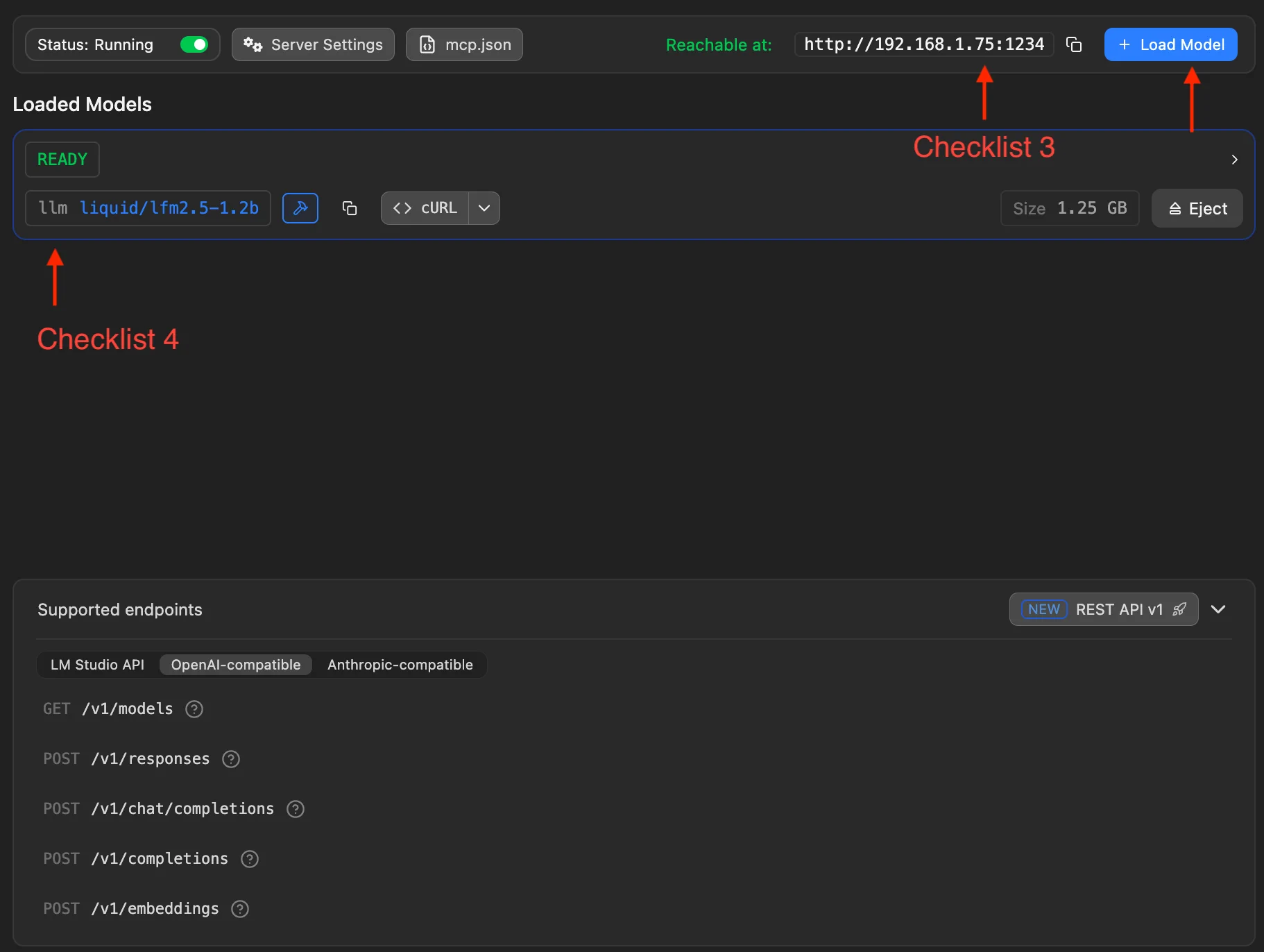
Optional self-test in a terminal:
curl http://127.0.0.1:1234/v1/modelsJSON with model ids means Local Server is ready.
Step 3: configure MiniTavern
- Open MiniTavern → Settings → LLM settings → Configure LLM (or AI provider).
- Under API Provider, choose Other LLM.
- In Base URL, enter the address from Checkpoint 3 and append
/v1.
For example, if Checkpoint 3 shows http://192.168.1.75:1234, set Base URL to:
http://192.168.1.75:1234/v1
- Tap Model, select the model currently loaded in LM Studio, and run a connection test.
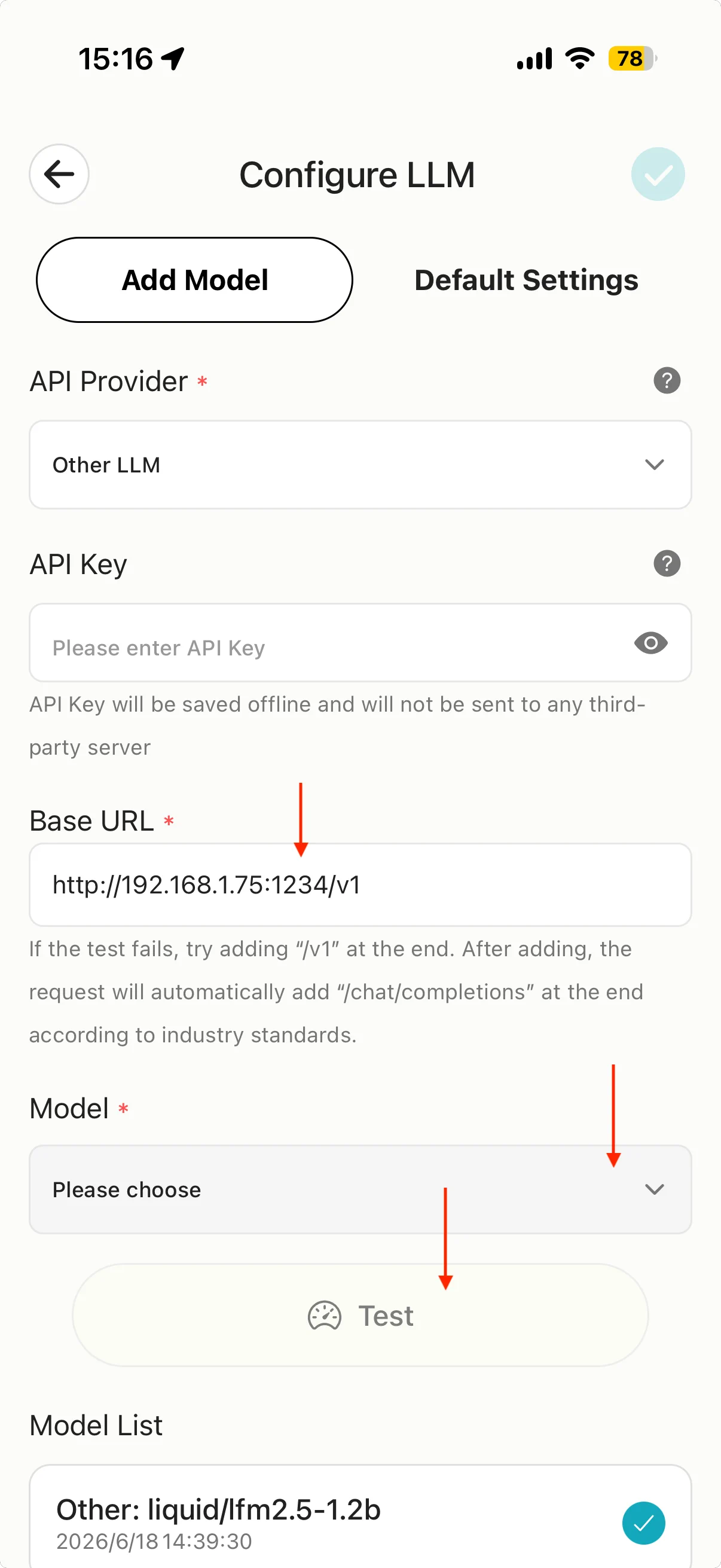
Important
- Use
http(not https) - Port must be
1234(or what LM Studio shows) - URL must end with
/v1(OpenAI-compatible path)
API Key: lm-studio or any placeholder (local servers usually do not validate keys).
If connection fails:
- Confirm the model is loaded and Local Server is running (Status: Running)
- Confirm Serve on Local Network is enabled
- Confirm Base URL matches the LAN address in LM Studio and ends with
/v1 - Confirm phone and PC are on the same Wi-Fi
- Check whether the firewall blocks port
1234
After a successful test, save and start chatting with a character card.
FAQ
Q: Why use the /v1 suffix?
A: This is the OpenAI-compatible request format. LM Studio has its own API format, but OpenAI-style requests are more common in the ecosystem. MiniTavern Other LLM connects this way too. If LM Studio’s /api/v1 format causes issues, switch to this guide’s http://IP:1234/v1 approach.
Q: Empty model list?
A:
- Confirm the model is Loaded and Local Server is running;
- In a browser on the PC, open
http://127.0.0.1:1234/v1/modelsand check for a response; - Confirm the MiniTavern URL includes
/v1.
Q: Poor reply quality?
A:
- Try a larger model or higher quantization (7B+);
- Adjust context length in LM Studio;
- Try different character cards and presets.