3.6 Local Free AI: Ollama
Ollama is a free tool that supports running AI models locally. Using Ollama, you can use AI completely free and offline without purchasing an API Key—or subscribe to an Ollama plan for greater model compute capacity with high or unlimited request limits.
Core Configuration Information
When configuring Ollama, you need to find the following core information:
- Host IP Address: Usually starts with
192.168(e.g.,192.168.1.2) - Base URL Format:
http://192.168.1.2:11434/api
Important Note
- Must use
httpprotocol (not https) - Must use port
11434 - Must add
/apiat the end
Example: http://192.168.1.2:11434/api (where 192.168.1.2 is your computer's IP)
Steps (macOS Example)
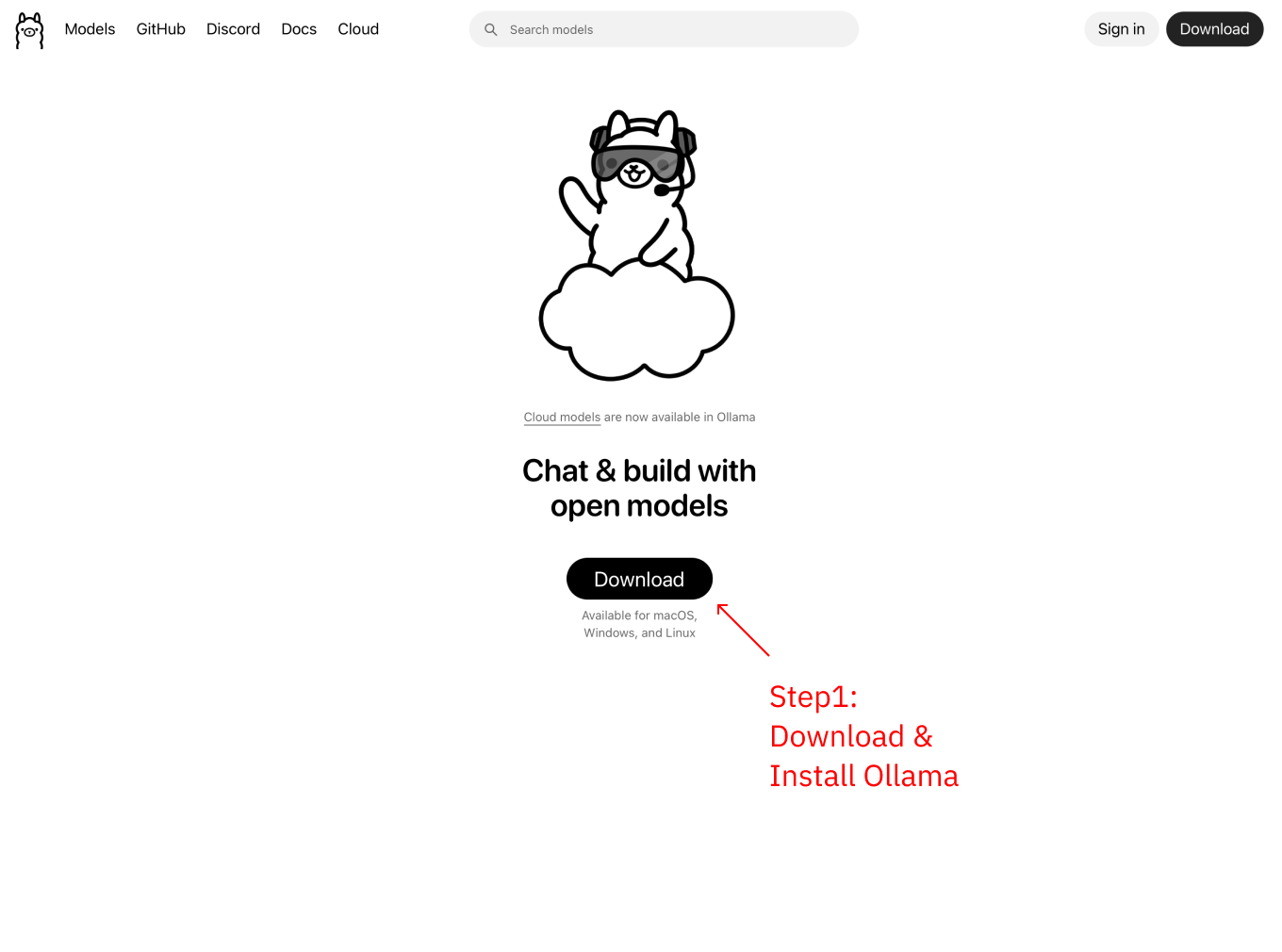
Step 1: Download and Install Ollama
Visit https://ollama.com to download and install Ollama
Step 2: Download Model
Open terminal and download a small model for testing (e.g., deepseek-r1:1.5b, about 1GB):
ollama pull deepseek-r1:1.5b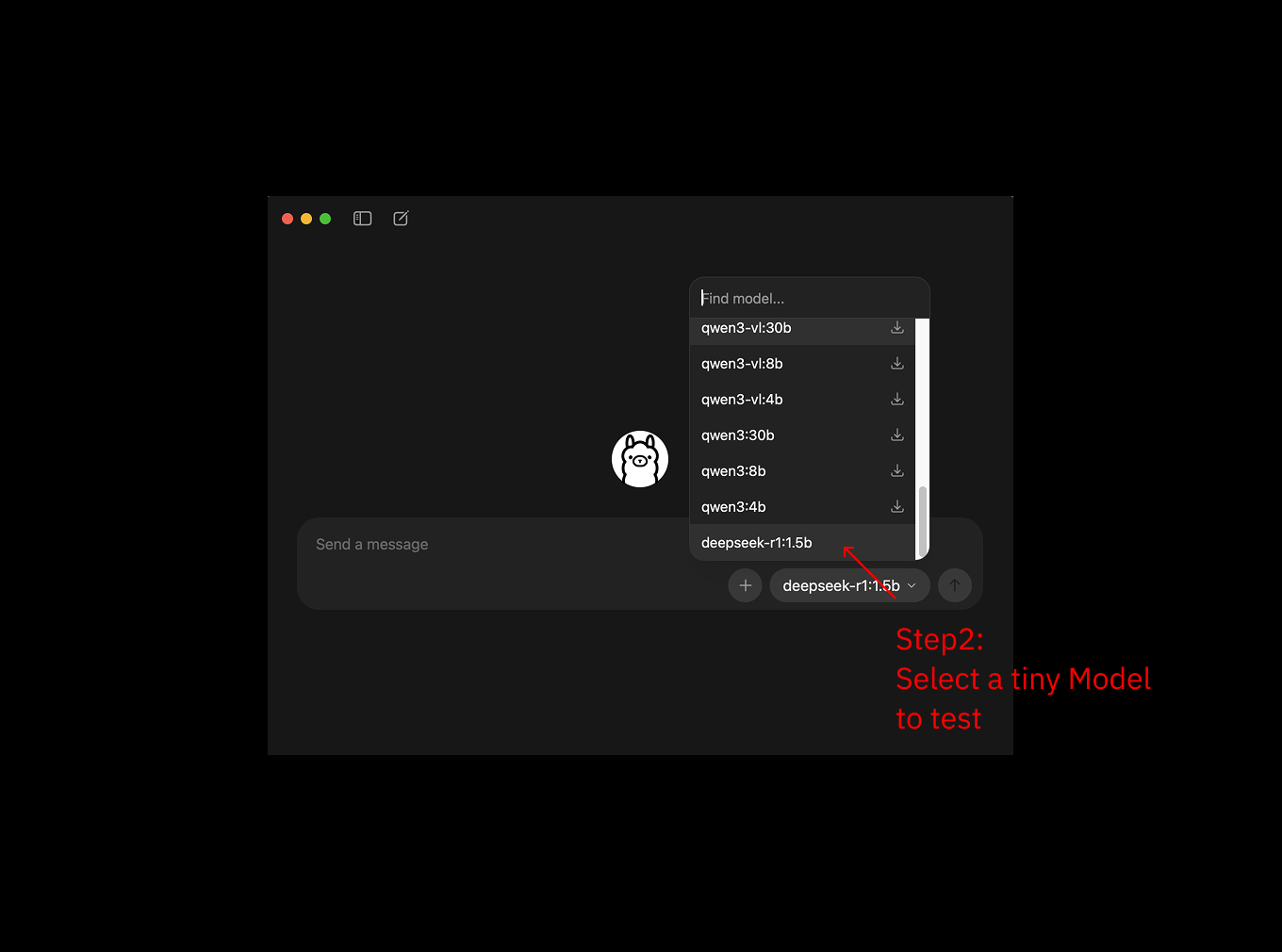
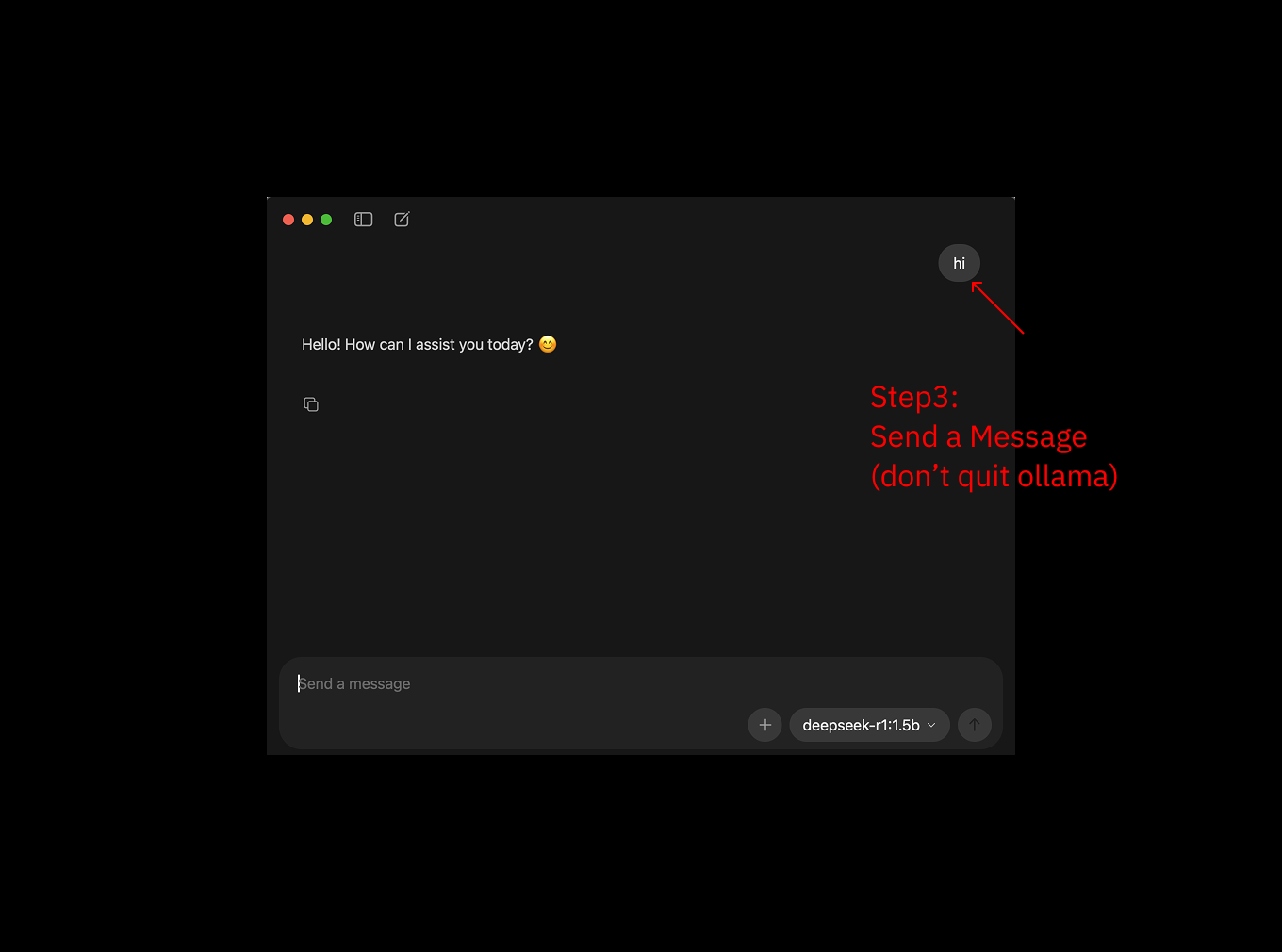
Step 3: Run Model
After download completes, run the model:
ollama serve
ollama run deepseek-r1:1.5b
First startup will be slower, afterwards you can chat with the model directly in terminal for testing
Step 4: Enable LAN Access
Enable LAN access in Ollama settings to allow phone to connect to Ollama on your computer
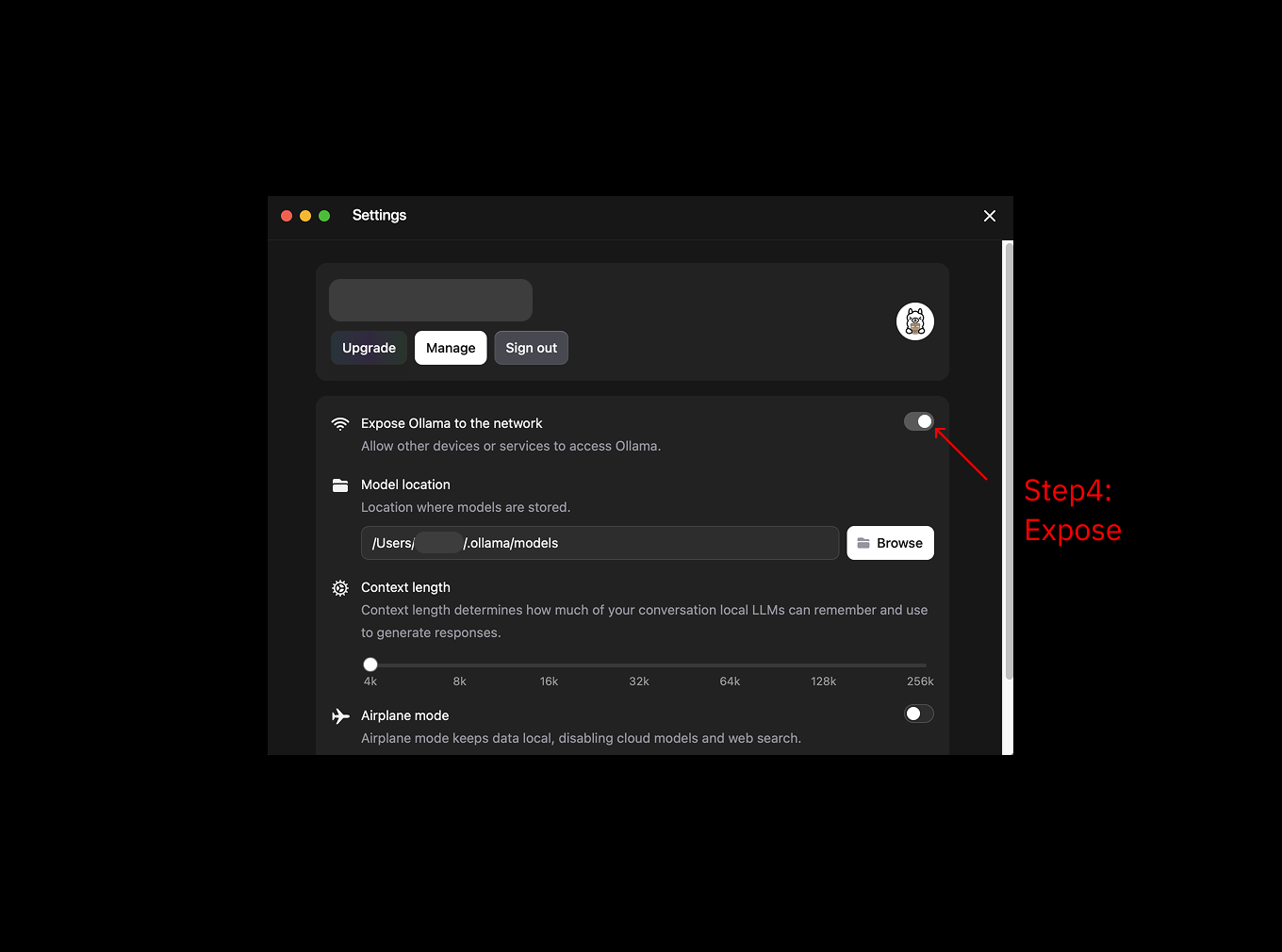
Why is this needed?
- MiniTavern runs on phone and needs to access Ollama on computer via LAN
- By default, Ollama only allows local access
- After enabling, devices on the same Wi-Fi can access it
If you prefer the command line and did not install the Ollama GUI app, you can skip the client setting in this step and follow Enable LAN access via CLI (0.0.0.0) below.
Step 5: Get Computer IP Address
Check your computer's IP address in system settings (usually starts with 192.168)
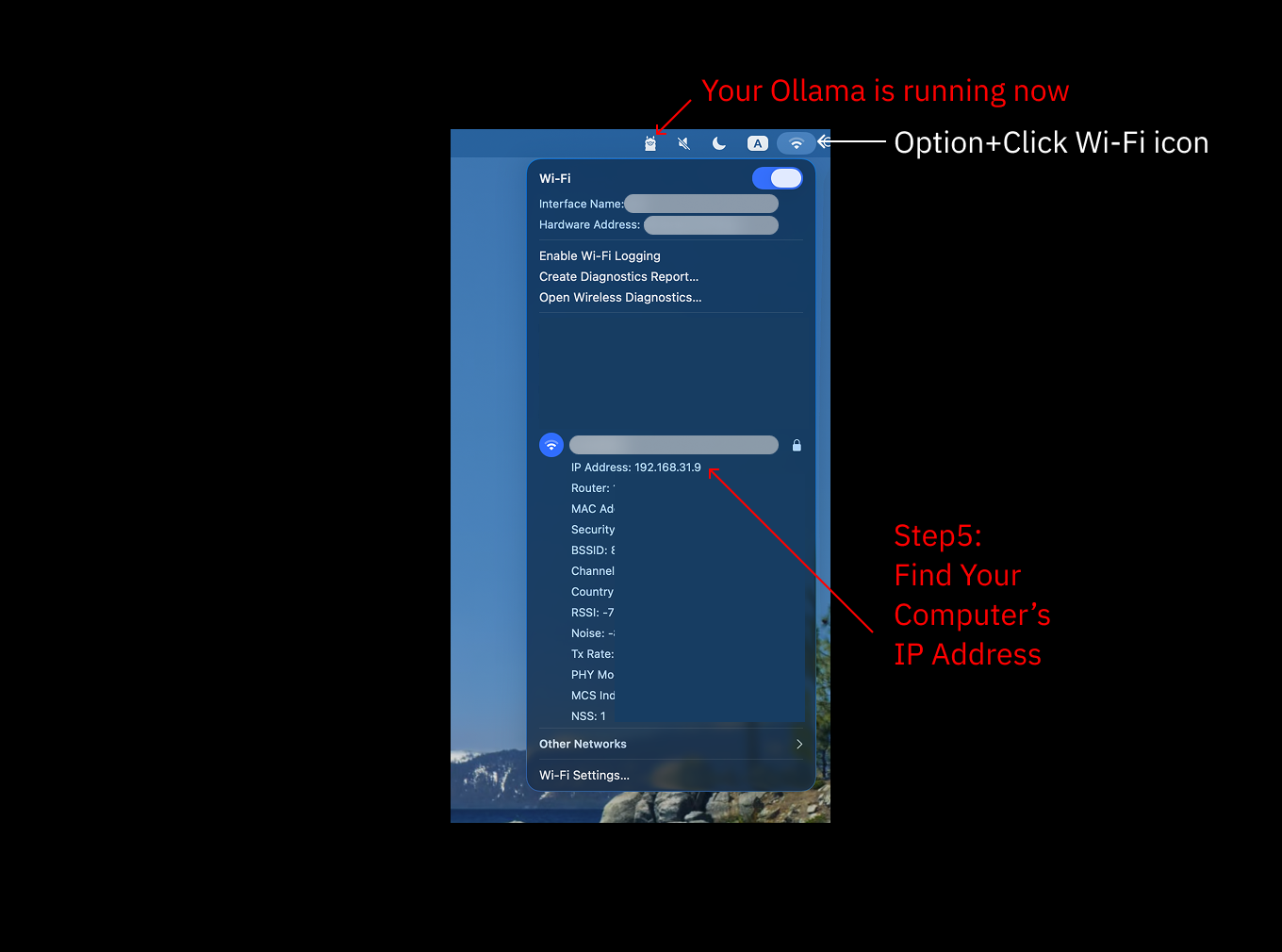
macOS IP Check Method:
System Settings → Network → Wi-Fi → Details → TCP/IP → IPv4 Address
Or use terminal command:
ifconfig | grep "inet " | grep -v 127.0.0.1Step 6: Configure in MiniTavern
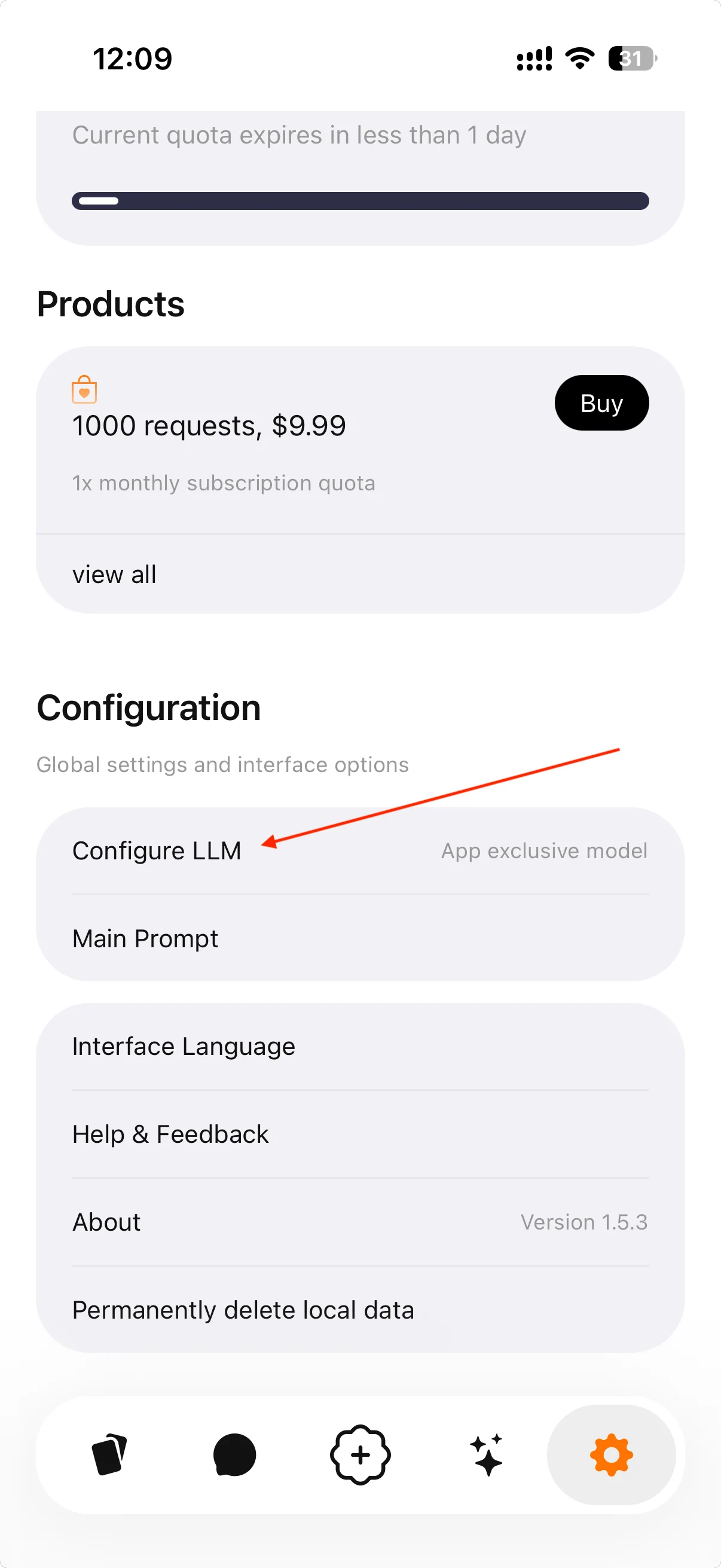
6.1 Select Other LLM Provider
Open MiniTavern → Settings → LLM Settings → AI Provider → Select Other
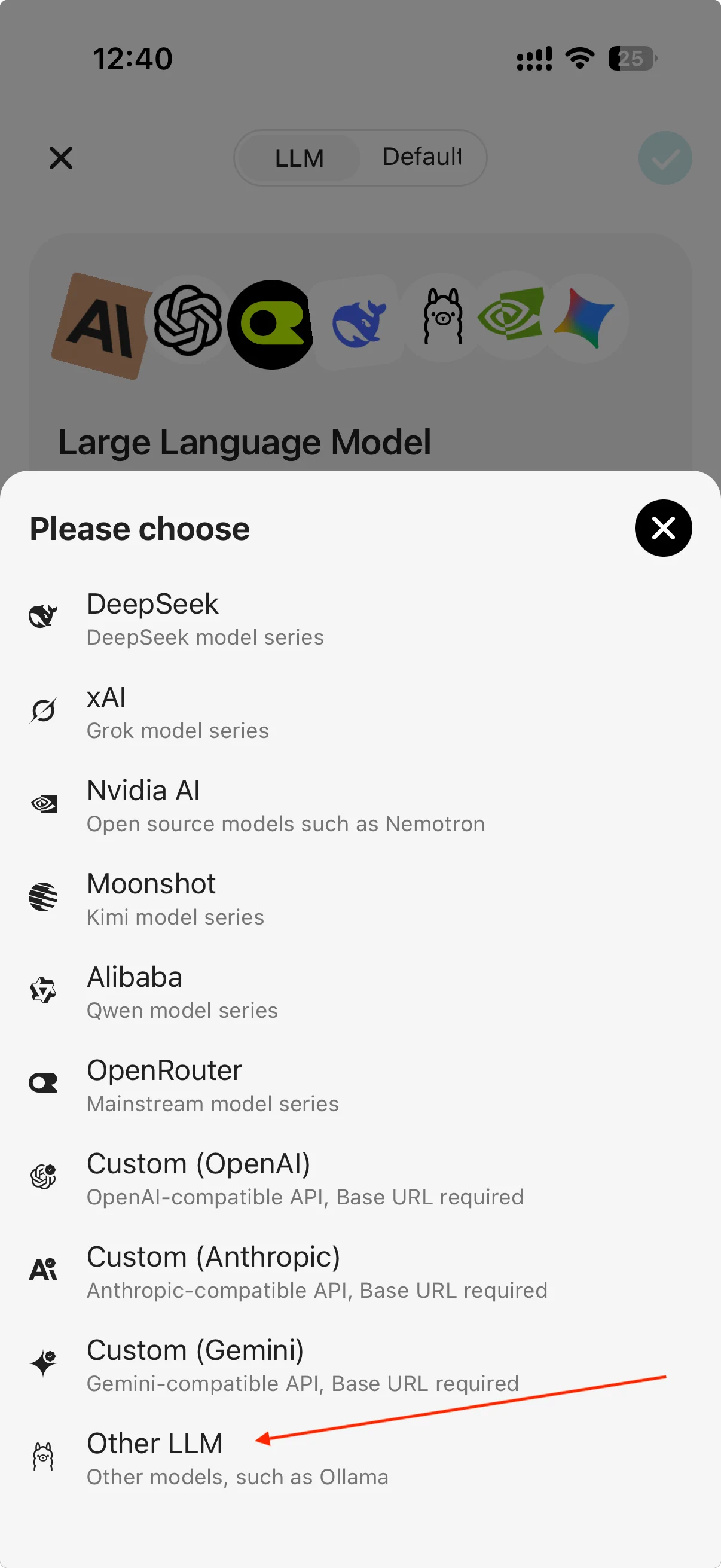
6.2 Enter Ollama Base URL
Enter Ollama Base URL: http://your-computer-IP:11434/api
Example: http://192.168.1.2:11434/api
Important Note
- Must use
http(not https) - Port must be
11434 - Must add
/apiat the end
Click Get Model List
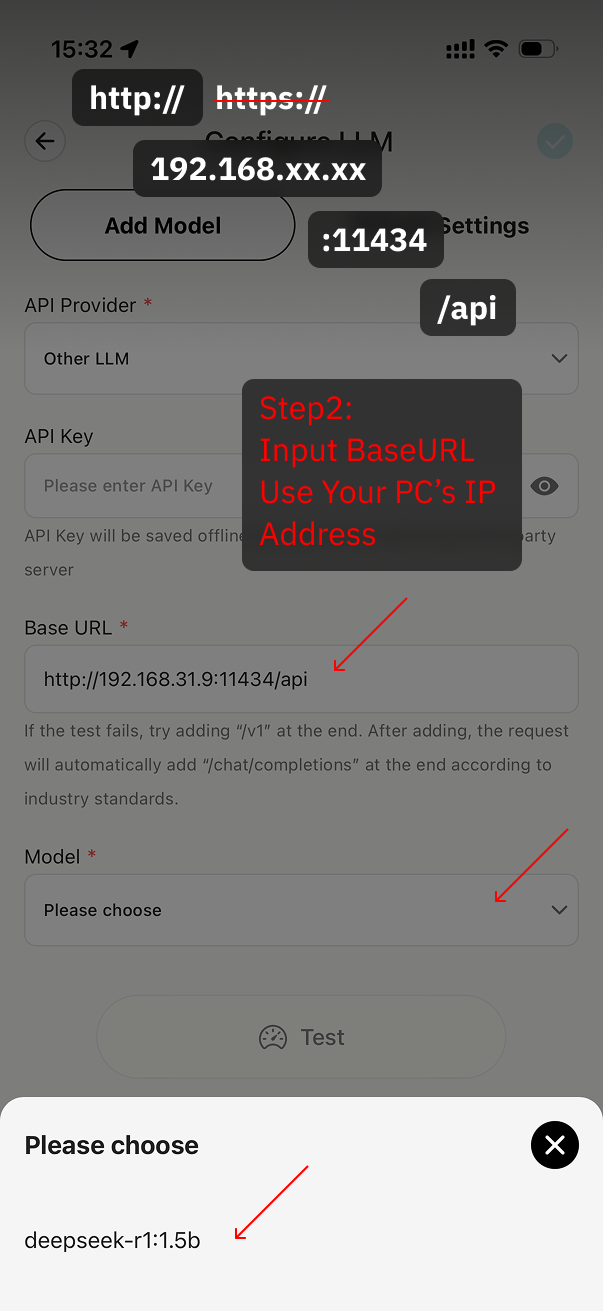
6.3 Test Connection
After selecting model, click Test Connection to verify configuration is correct
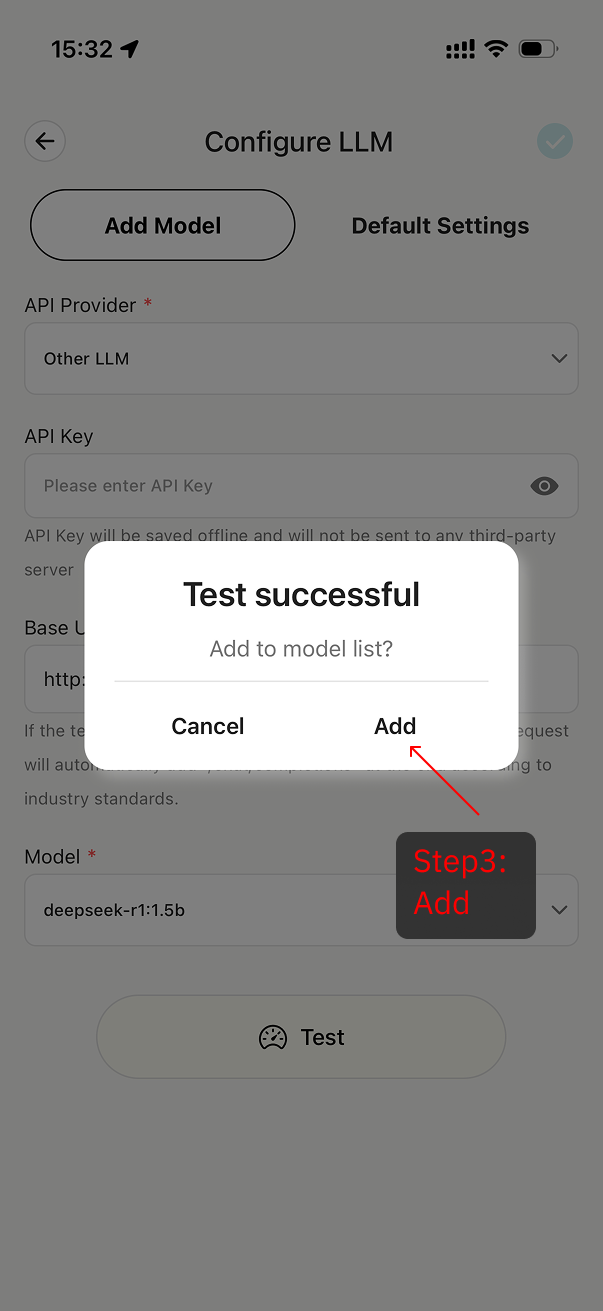
If unable to connect:
- Check if Ollama is running
- Confirm IP address is correct
- Ensure phone and computer are on same Wi-Fi
- Check if Base URL format is correct
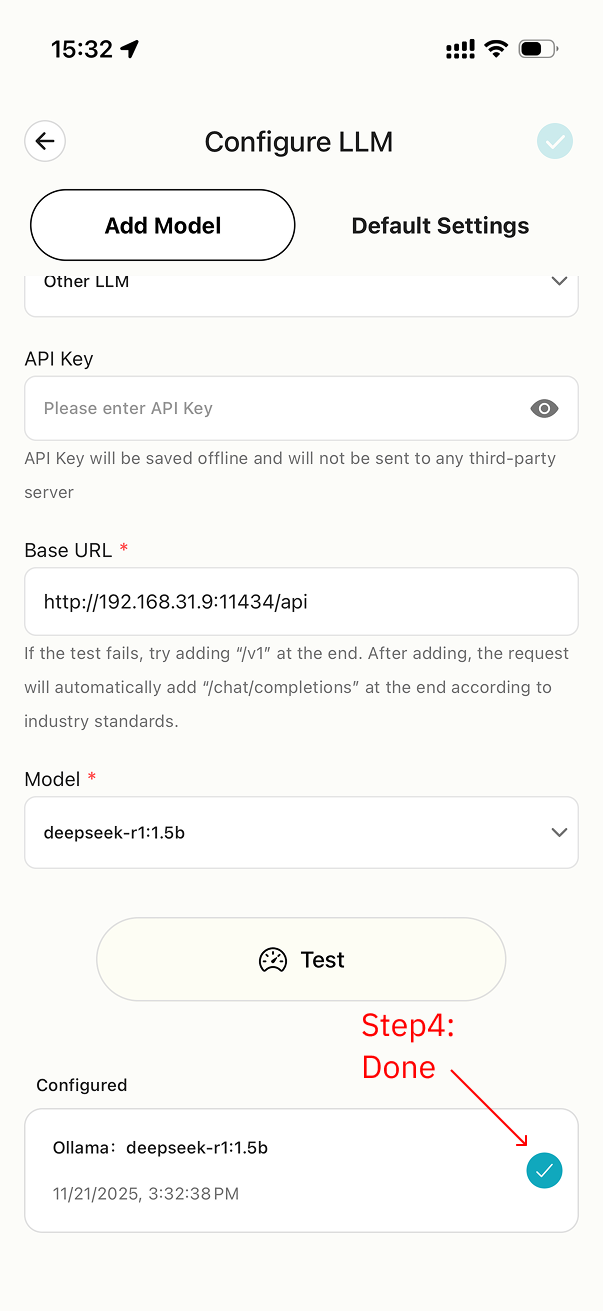
6.4 Add Complete
After successful test, click save, model addition complete
Install Ollama Using Brew
brew install ollamaEnable LAN access via CLI (0.0.0.0)
This section uses macOS as an example and shows how to change Ollama’s listen address to 0.0.0.0 from the command line—equivalent to Expose to the Network in the client.
- If you did not install the Ollama app and only installed the CLI with
brew install ollama, the default start only shares model access on this computer, listening on127.0.0.1. That address cannot be reached by other devices on the LAN. - Stop the current service with
pkill ollama, then restart serve bound to0.0.0.0. - If you previously downloaded and auto-started the Ollama app and it is still running in the background, fully quit the app first; otherwise you will see that the port is already in use.
- Then run:
OLLAMA_HOST=0.0.0.0:11434 ollama serveThis starts a local serve that is reachable on the LAN. In MiniTavern, keep using your computer’s LAN IP for the Base URL, for example: http://192.168.1.2:11434/api.
Common Ollama Commands
# View all downloaded models
ollama list

# Download tutorial example model
ollama pull deepseek-r1:1.5b

# Start Ollama service (localhost 127.0.0.1 only)
ollama serve

# Start Ollama service and expose to LAN (0.0.0.0)
OLLAMA_HOST=0.0.0.0:11434 ollama serve

# Run specified model in new process
ollama run deepseek-r1:1.5b

# Stop Ollama service
pkill ollama
# Or press Ctrl + C if running in the foreground
FAQ
Q: Poor conversation quality?
A:
- Try using larger models (7B or above)
- Try different character cards