3.5 Nvidia Free API Setup
Using Nvidia NIM (Nvidia Inference Microservices) platform's free tier account as an example.
Core Configuration Information
When configuring Nvidia NIM, you need the following information:
- Visit Nvidia Platform to Create API Key: https://build.nvidia.com/explore/discover
- Base URL:
https://integrate.api.nvidia.com/v1 - API Key Format: API Key string starting with
nvapi-
Nvidia NIM is a platform that supports users to use online open-source models and allows users to create API Keys with free credits.
Steps
Step 1: Visit Nvidia NIM Website
Visit https://build.nvidia.com/explore/discover
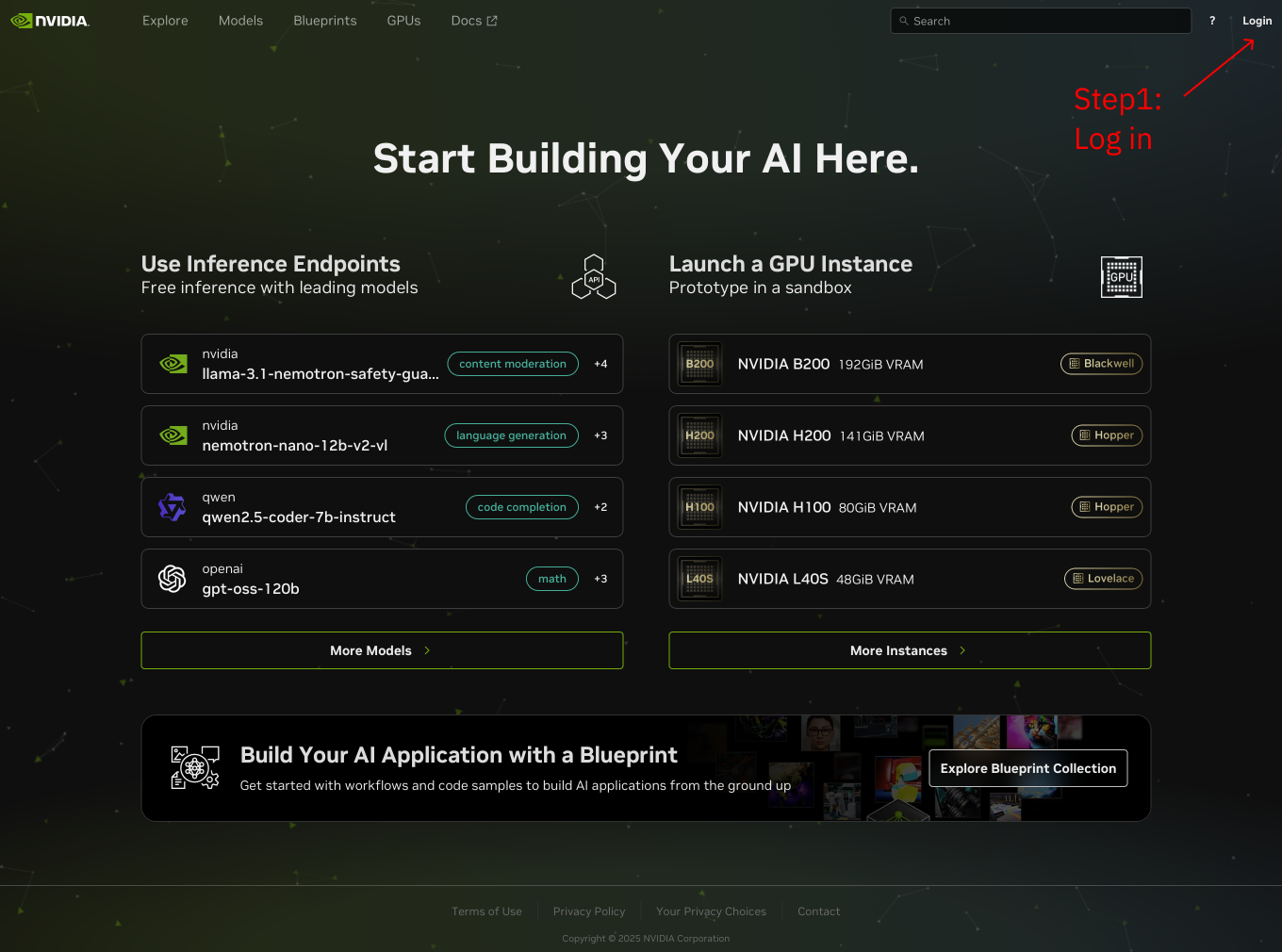
Step 2: Create API Key
- Log in to your account (register and verify phone number if you don't have an account)
- Click the Manage API Keys button
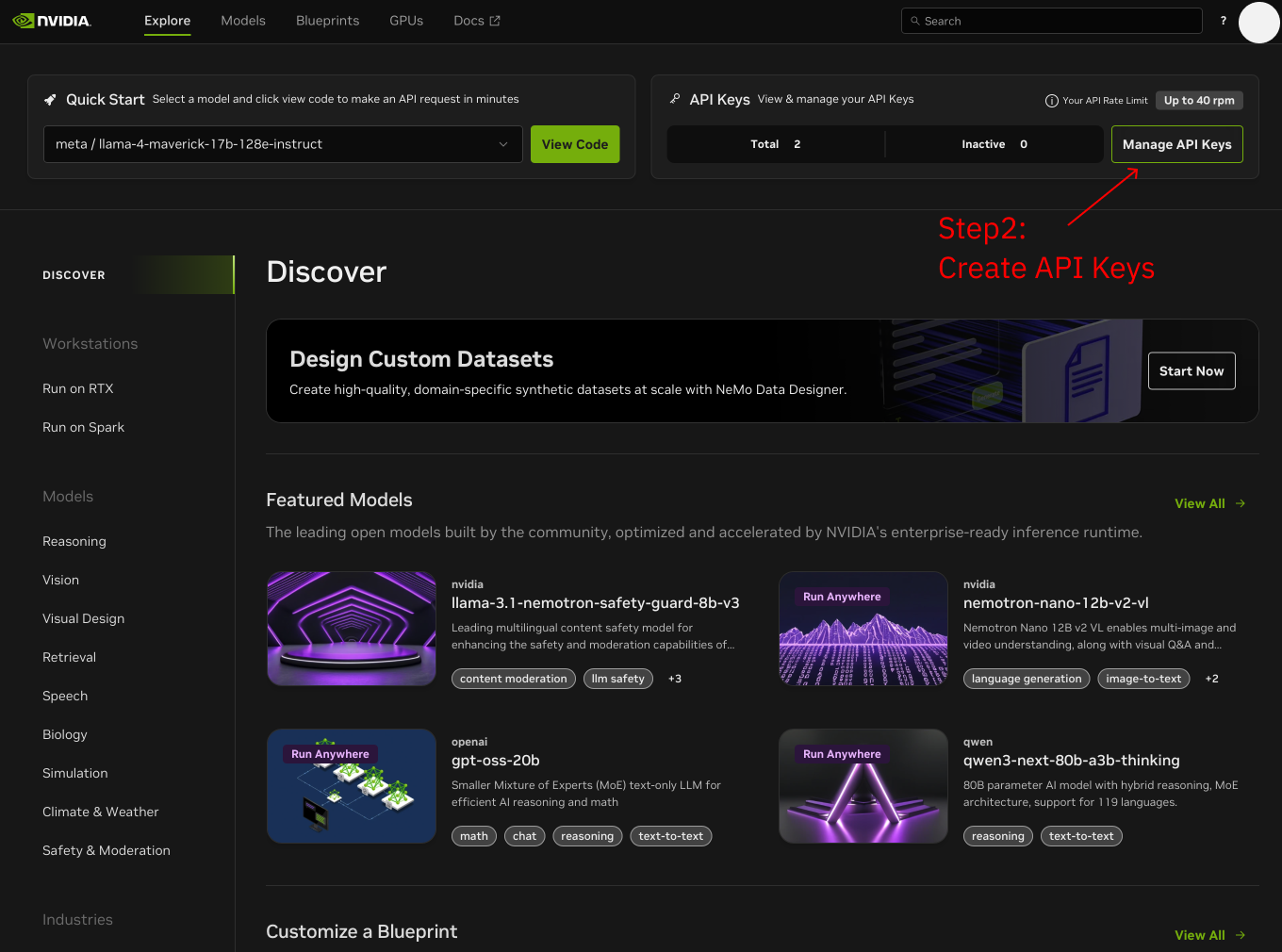
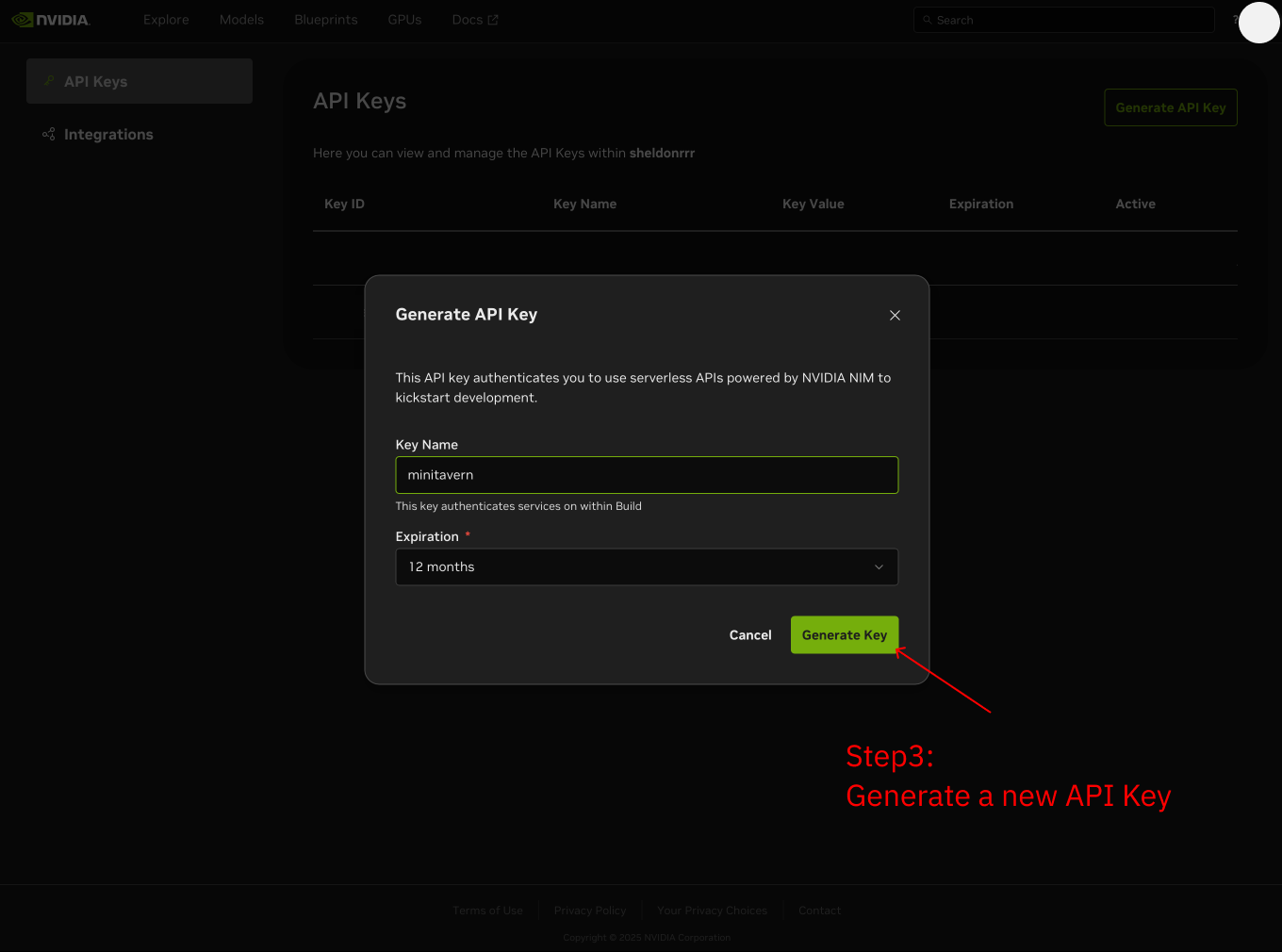
Step 3: Set API Key Name and Create
Set a name for your API Key (e.g., MiniTavern), click confirm to create
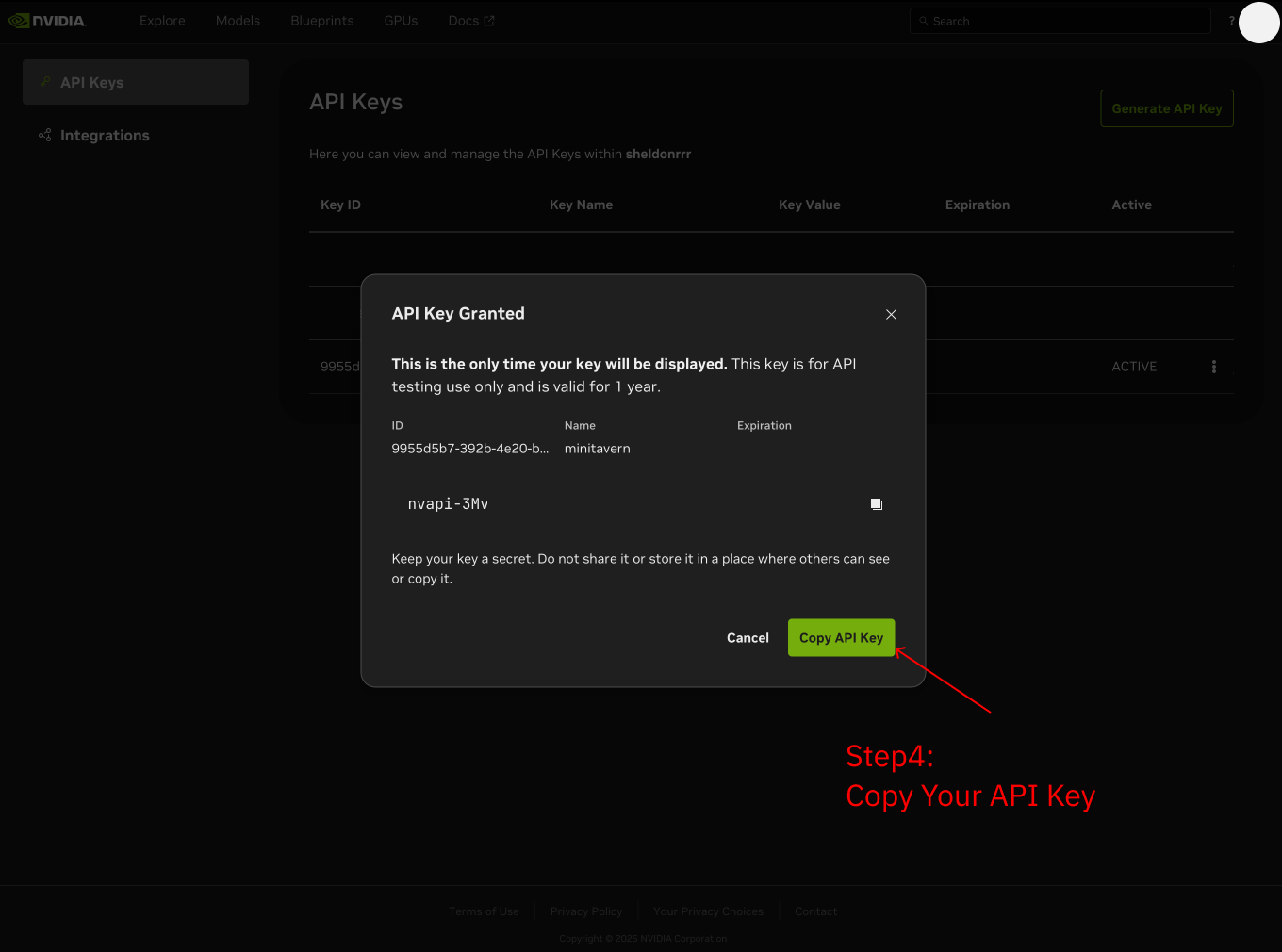
Step 4: Copy API Key
After successful creation, immediately copy the API Key (starting with nvapi-)
Important Note
- API Key is only displayed once, please save it immediately
- Do not share your API Key with others
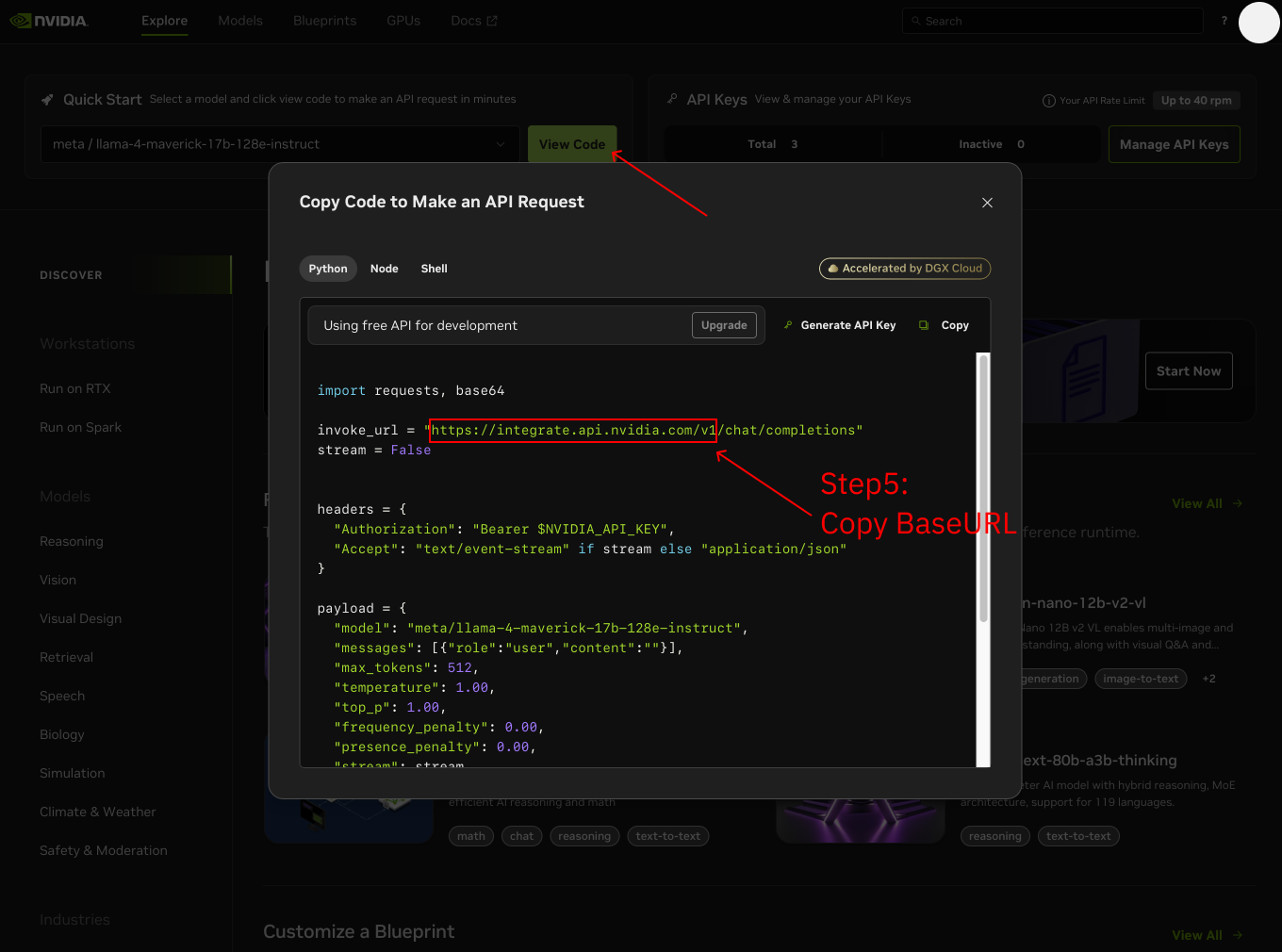
Step 5: Get Base URL
Base URL is: https://integrate.api.nvidia.com/v1
Step 6: Configure in MiniTavern
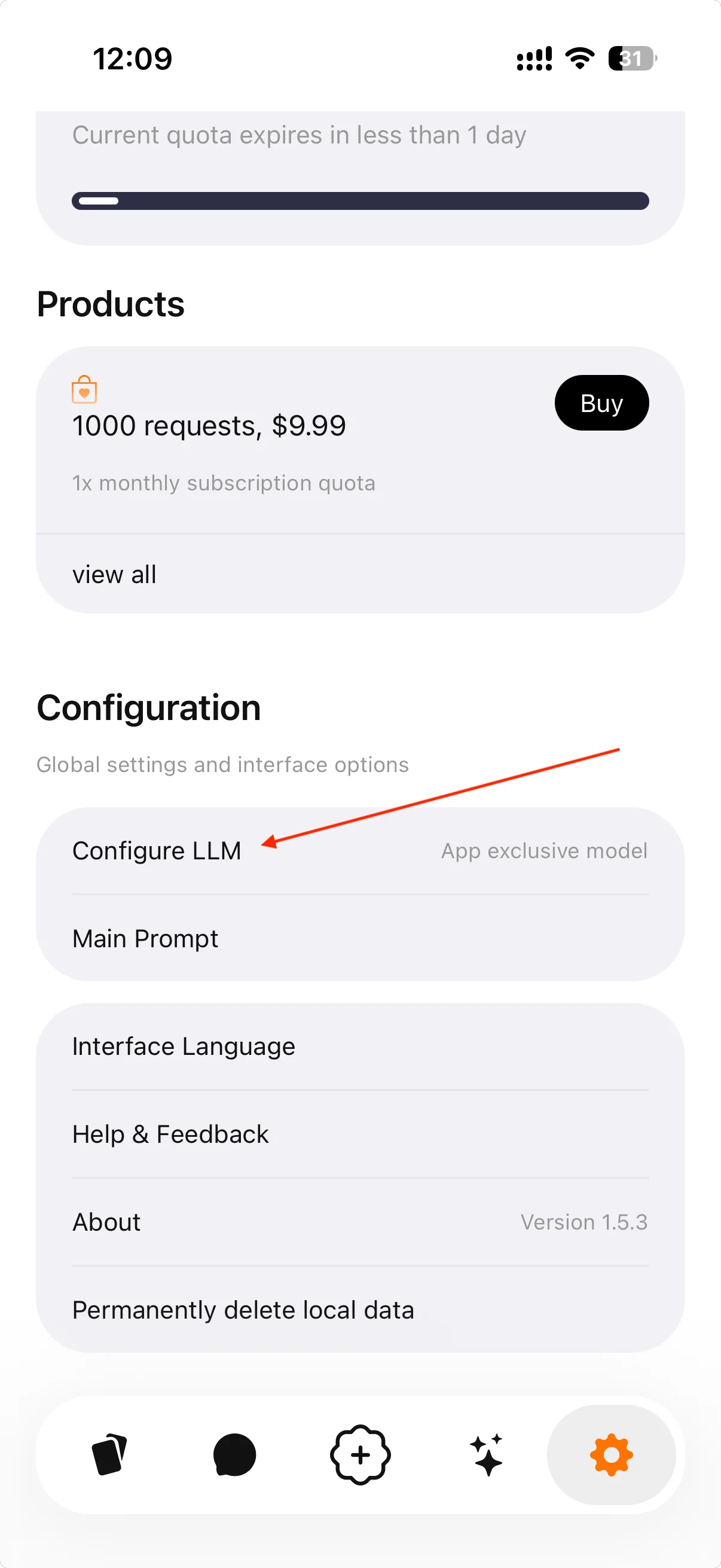
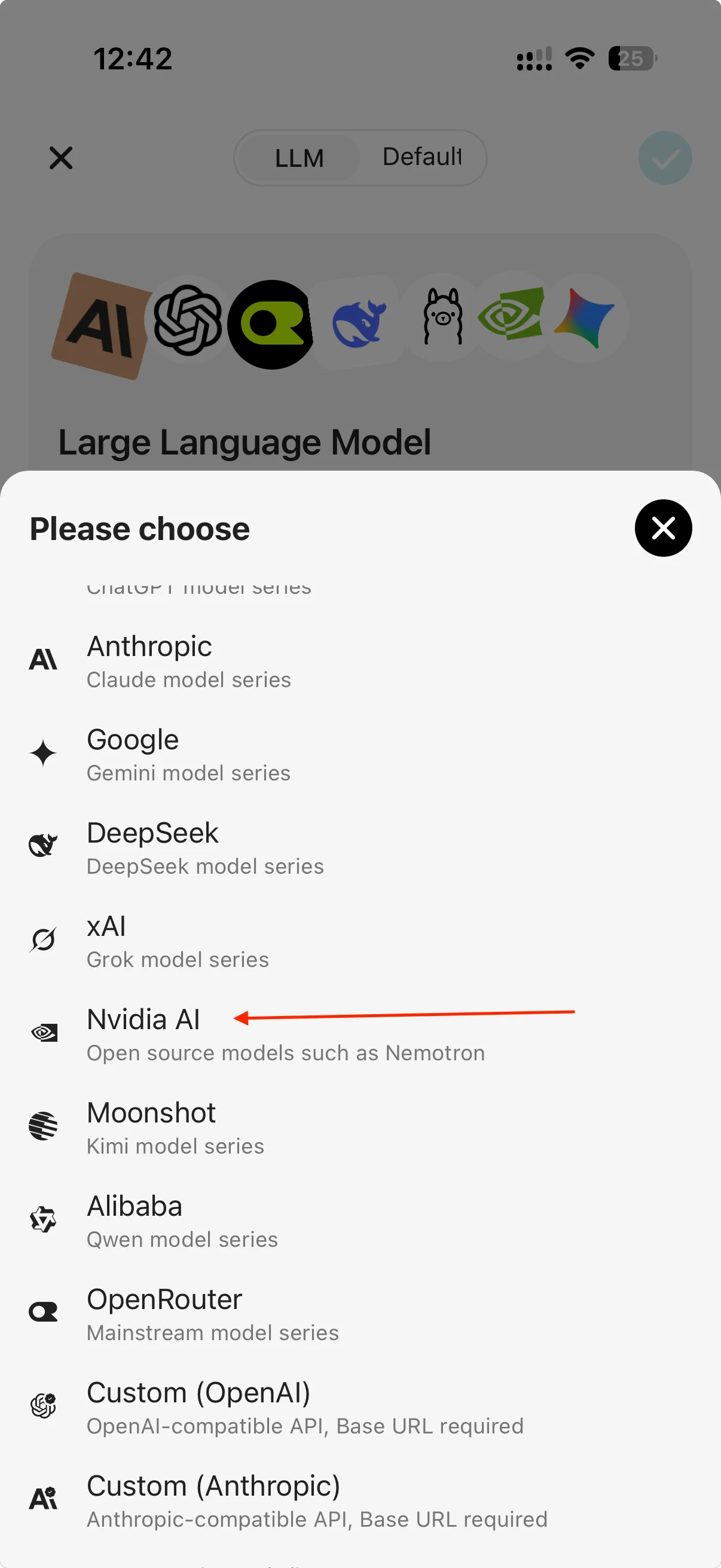
6.1 Select Custom Provider
Open MiniTavern → Settings → LLM Settings → AI Provider → Select Custom
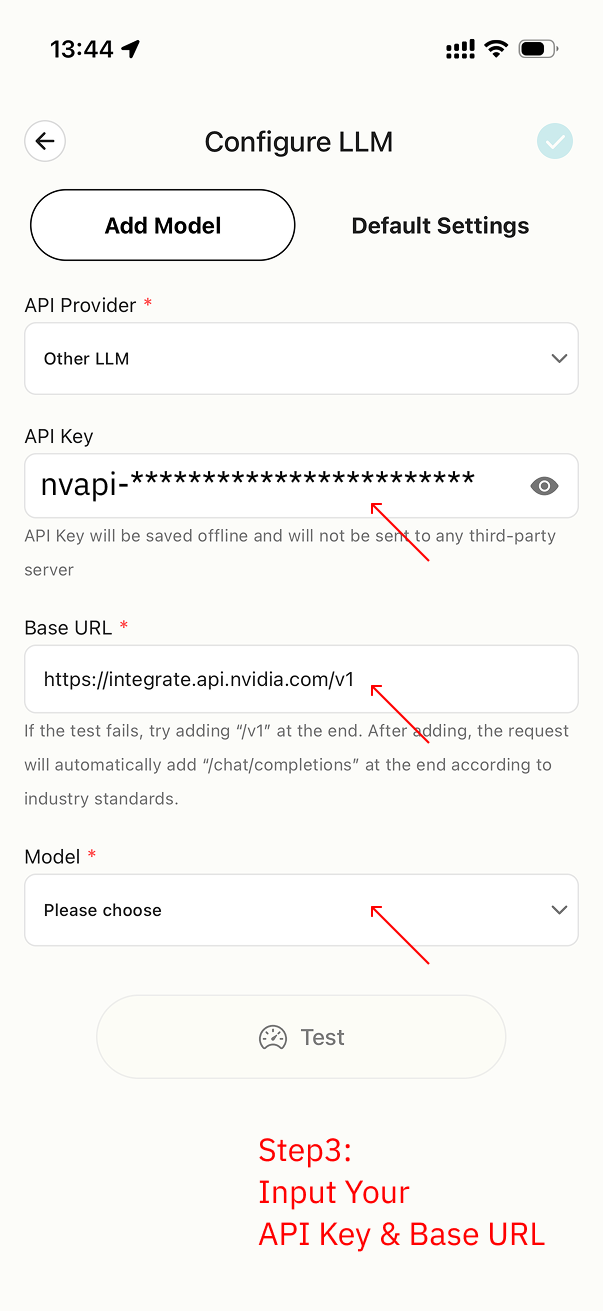
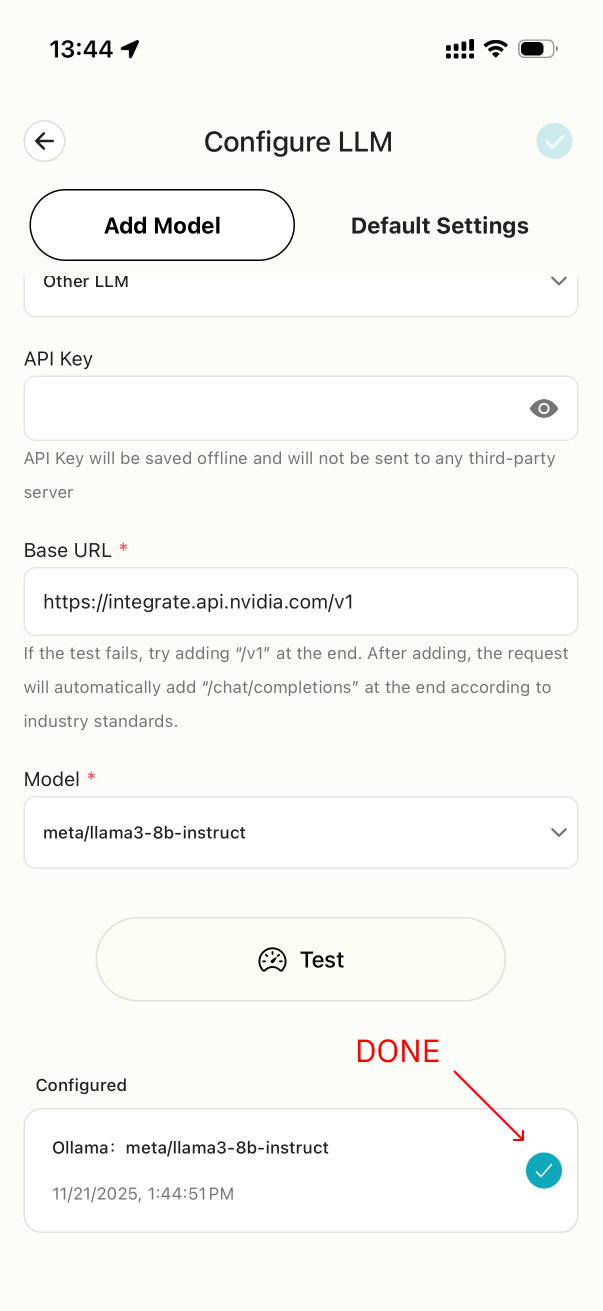
6.2 Enter API Key and Base URL
- Paste your API Key (starting with
nvapi-) - Paste Base URL:
https://integrate.api.nvidia.com/v1
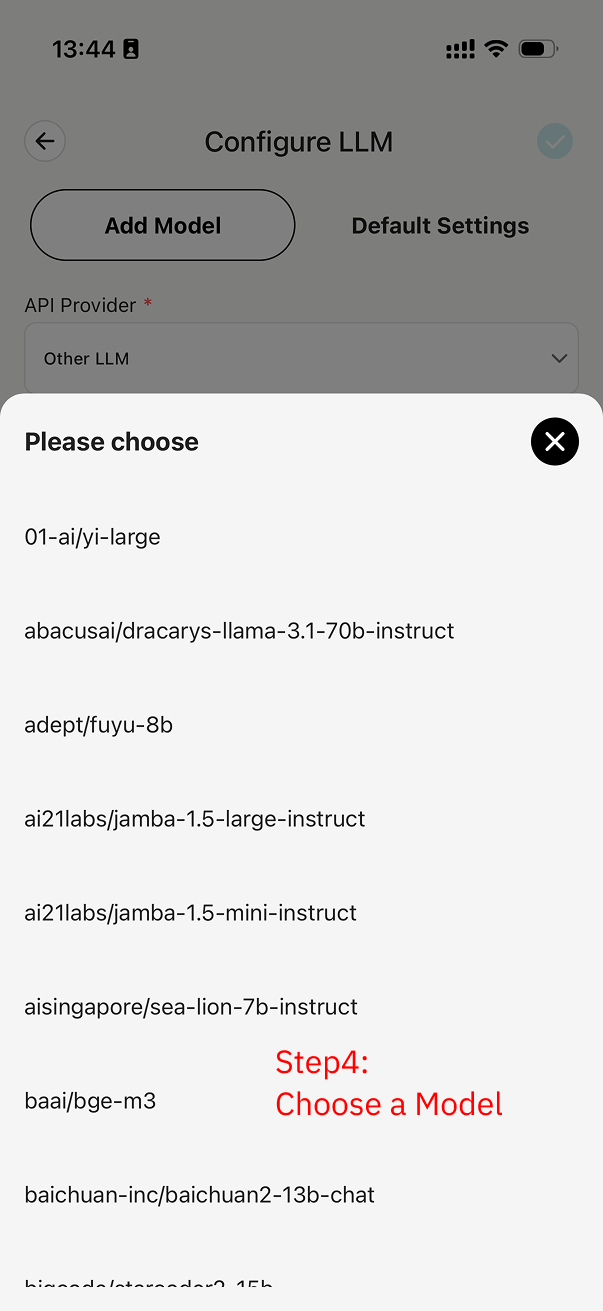
6.3 Get Model List
Click Get Model List to view available models
6.4 Add Model
Select the model you want to use, click Add
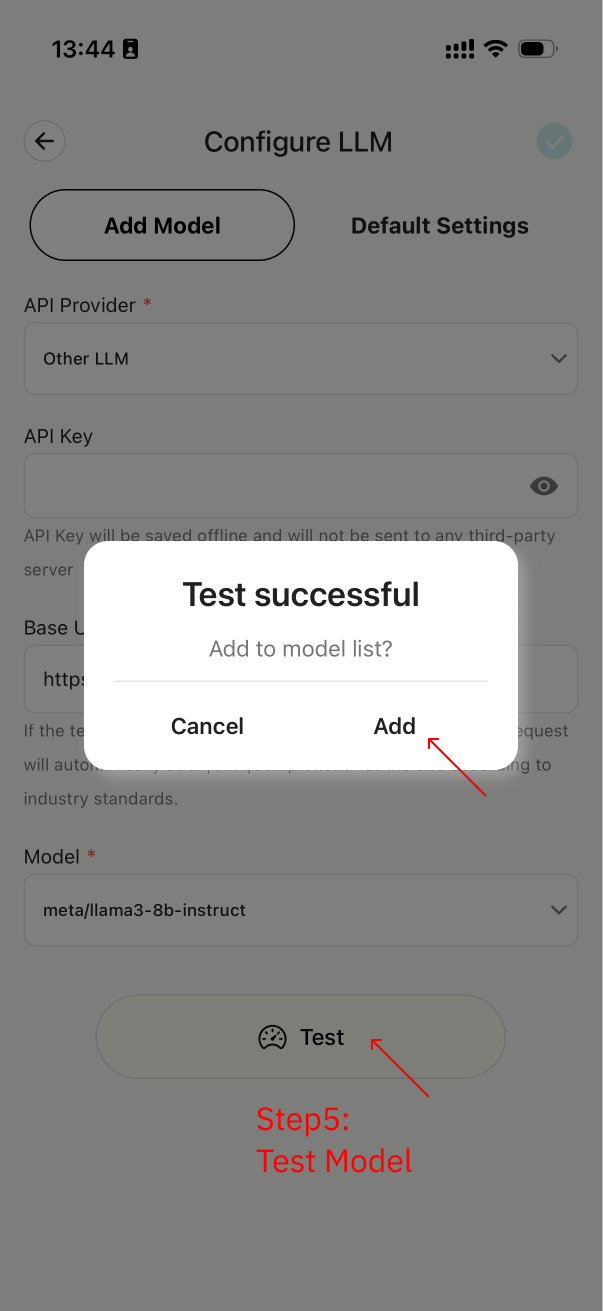
6.5 Configuration Complete
Model added successfully, you can start using it now
FAQ
Q: How long is the API Key valid?
A: Nvidia AI currently provides a certain amount of free usage quota, after which payment is required.